
Move Pointer screen Layout Search Hotkeys Tray Animation & language
1. Precise moves, not just left and right
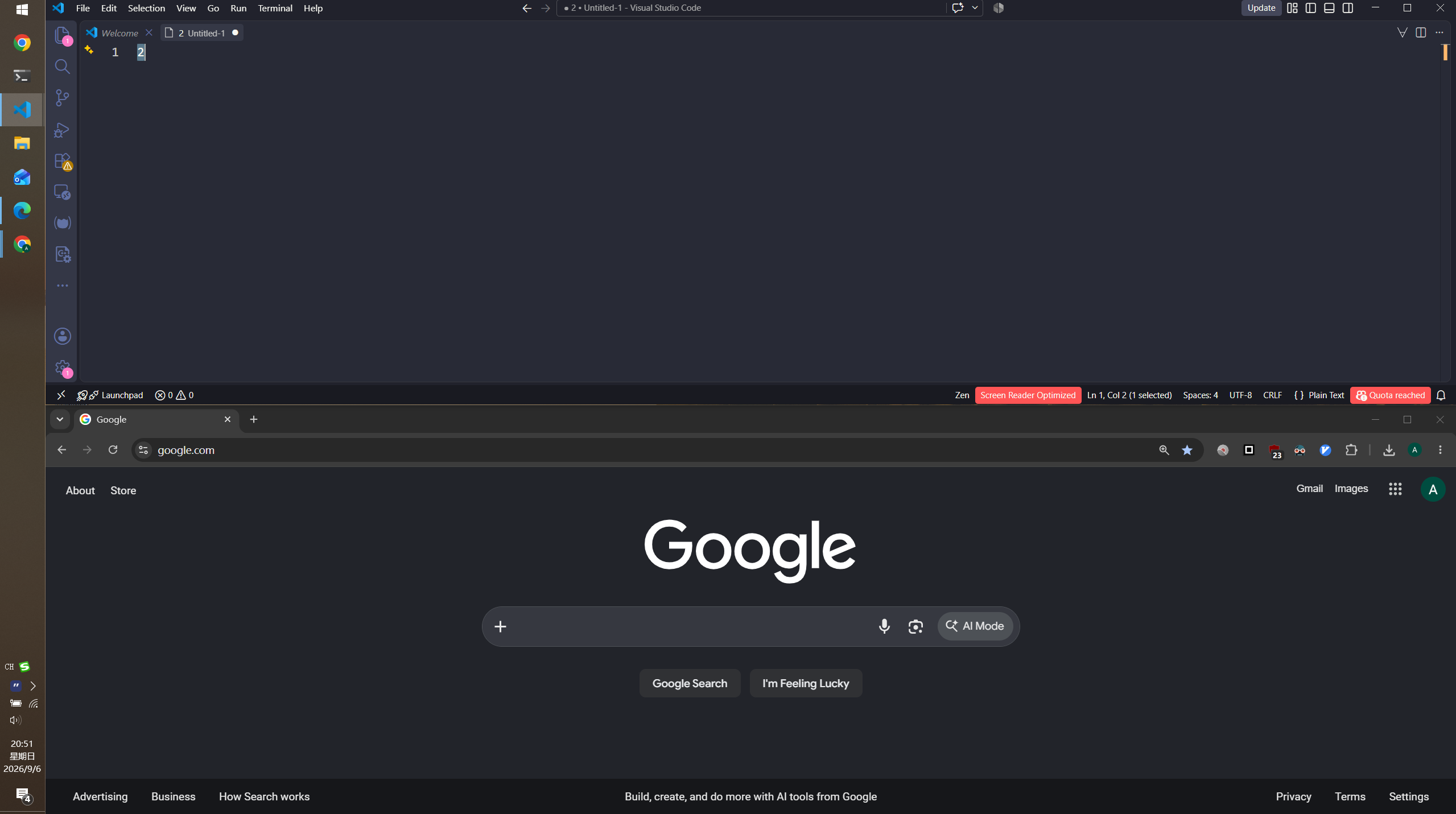
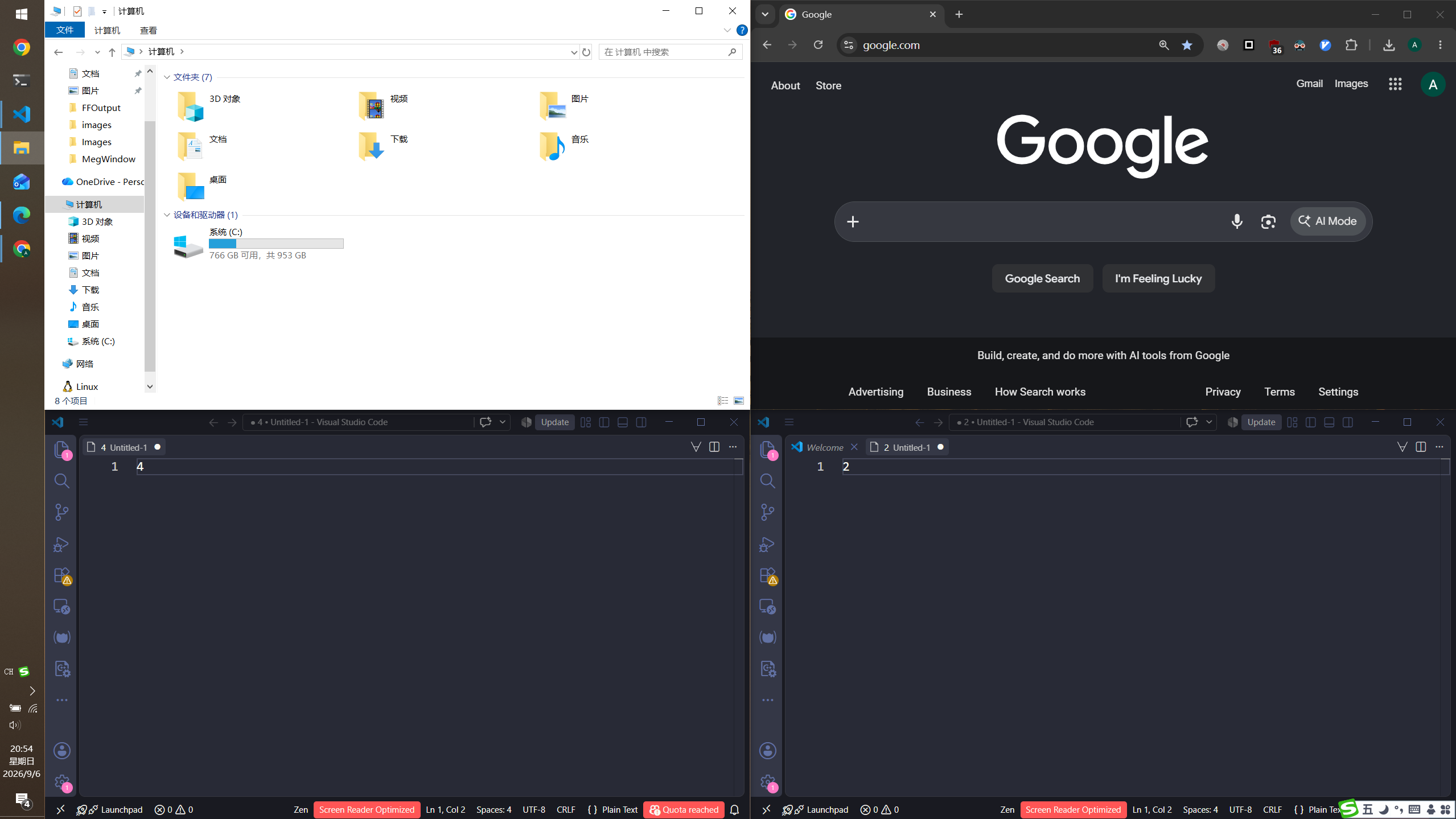
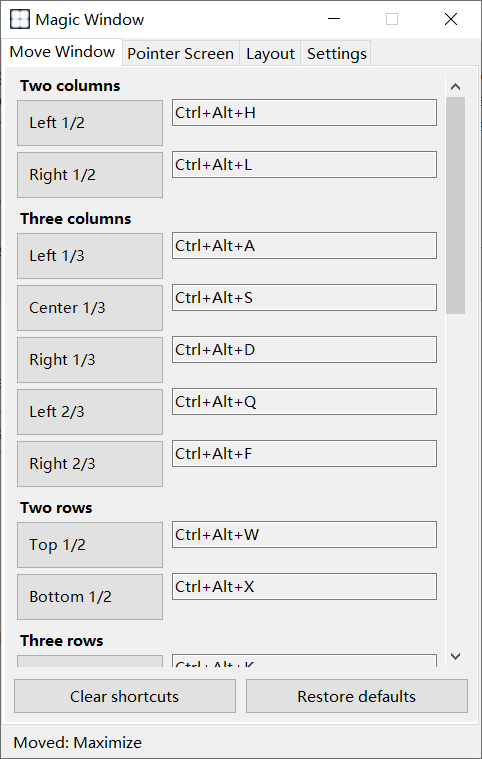
Place the current window on a geometric partition of the work area — not only halves:
| Type | Actions |
|---|---|
| Two columns | Left 1/2, Right 1/2 |
| Three columns | Left 1/3, Center 1/3, Right 1/3, Left 2/3, Right 2/3 |
| Two rows | Top 1/2, Bottom 1/2 |
| Three rows | Top 1/3, Center 1/3, Bottom 1/3 |
| Quadrants | Top left, Top right, Bottom left, Bottom right |
| Screen | Maximize; restore size and center |
| Display | Previous / next monitor (keeps relative partition) |
| Virtual desktop | Send this window to the previous / next desktop |
Code next to docs, a sheet next to chat, video next to notes — size comes from the partition. No more dragging borders.
2. Pointer screen: the cursor picks the display
The same snap actions, but the target display is the one under the mouse. Useful when:
- The keyboard is on the primary screen and the mouse is clicking on a second screen.
- A laptop plus an external display, and the window should follow your hand.
- You do not want to move focus to the target screen before snapping.
Pointer-screen hotkeys are independent from Move Window. Bind, clear, or restore defaults separately.
3. One-key layout: current screen or all screens
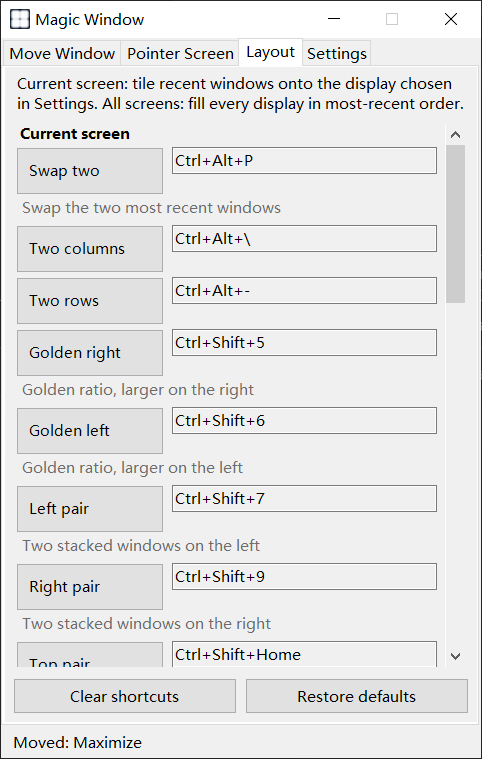
You do not have to snap windows one by one. Layouts place recent windows:
- Swap two — exchange the two most recent windows.
- Two columns / two rows — classic split.
- Golden right / golden left — one large work area, one side pane.
- Left pair / right pair — two stacked windows on one side, the rest for the main window.
- Top pair / bottom pair, main left / main right, three columns, three rows, four grid
- All screens — one each, two columns/rows, three columns/rows, four grids, in most-recent order.
Current-screen layouts can follow the display under the mouse, or always use the primary monitor.
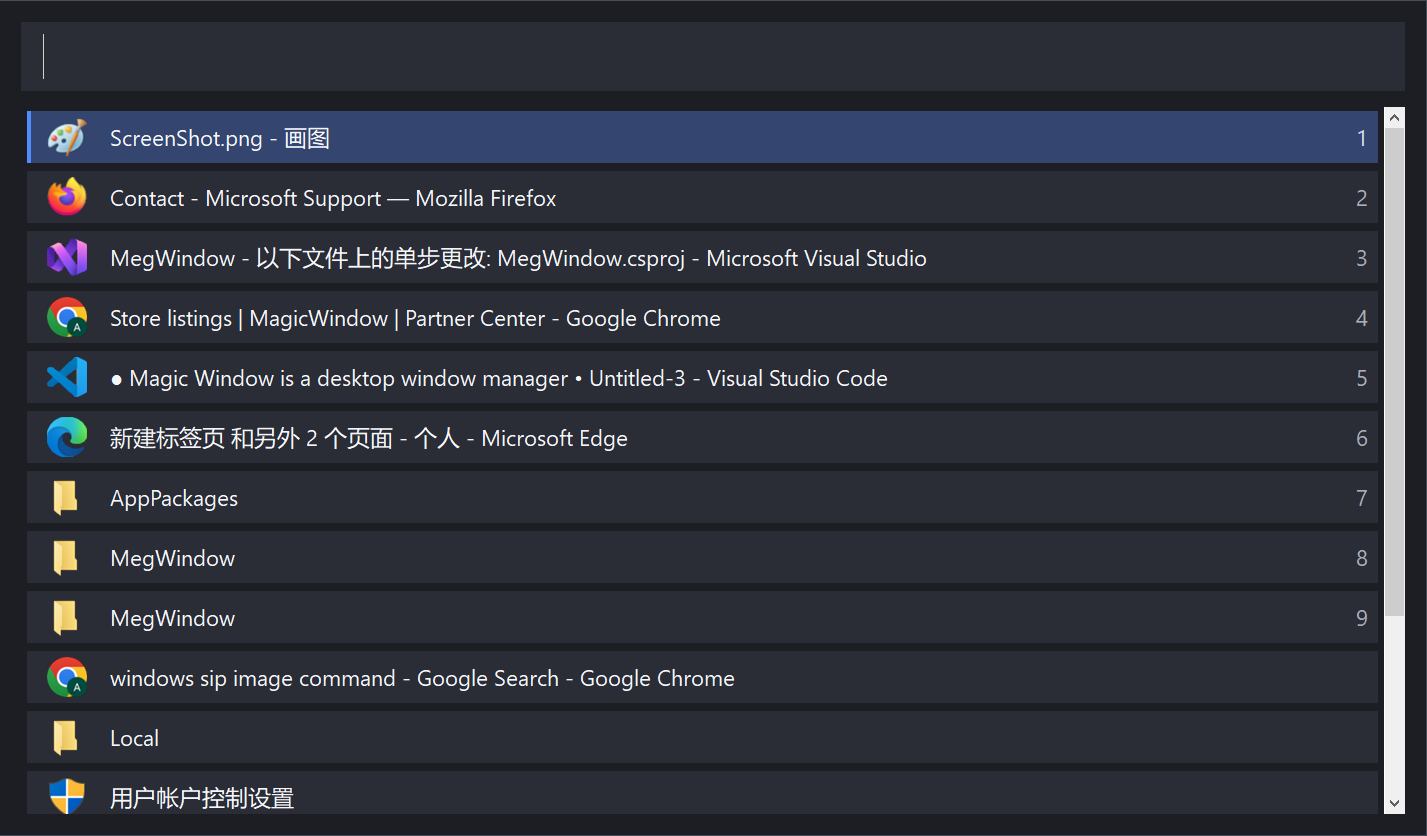
4. Window search: find a window from the keyboard
When too many windows are open, Alt+Tab gets slow. Magic Window has its own search bar:
- Default Ctrl+Alt+Space to open
- Filter by title as you type
- Select to activate
- Ctrl+J / Ctrl+K next / previous (changeable)
- Clear “no matching windows” state
- Remembers search window position and size
5. Every hotkey is yours
The main window has Move Window, Pointer Screen, Layout, and Settings. Click an action to record a new chord; Esc cancels. Conflicts are reported and the previous binding is taken over. Clear a page or restore defaults. Config lives in the user profile, not tied to one machine.
See the default hotkey list.
6. Lives in the tray
- Show Window
- Start with Windows
- About
- Exit
Close the main window after editing hotkeys. Day to day, only hotkeys.
7. Animation and languages
Window moves can animate. Speed is adjustable (~20–1000 ms, default ~220 ms). Language can follow the system or lock to English, 简体中文, 繁體中文, 日本語, 한국어, Français, Deutsch, or Español.